Posted on

Camera Inspections Inside the Chase or Wall Cavity?

We sometimes can’t get into chase cavities that surround our fireplaces, chimneys and vents to more closely inspect the systems inside. This creates blind spots in our inspection processes. When we can get inside we often find major safety issues and improperly installed systems.

Once you do get into the chase how do you document what you see? How much can you even see to begin with?

Trying to stick your arm in to take pictures or videos with your phone can work but you have limited range and reach. Putting an endoscope provides enough information to often identify issues however its images are sometimes not clear enough or do not provide ample perspective to show the homeowner the issues that may exist.

This is why we began putting out IF3 MAX Camera Kit up into chases from gaps or access points found around the fireplace, in adjacent rooms, through heating vents, electrical covers behind TV’s often mounted above fireplaces, etc… With our camera we can light up the entire chase and take 360 photos and videos of what we see. Because of the increased perspective of the 360 camera we can zoom out and get perspectives where the customer can identify what we are talking about during wrap up.

Here are a few pictures of the amount of light the two GoPro lights that come standard on our kits provide in a chase. Two photos show up where about 10’ of rods are inserted through a hole in the sheetrock the customer provided to allow a Level III inspection. Down two photos are also included where 15-18’ of rods were used. The only light present in the chase is from the lights on our IF3 camera kit.

Please let us know if you have any questions or go ahead and order your kit today!

Whether you get into the chase from the room the fireplace is in, an adjacent room, the attic, or the rooftop – get the pictures you need to showcase any safety issues or fire hazards you may find.

Posted on

Extending Connection Range with GoPro Cameras

Watch the video below to learn how to extend range with the GoPro wifi cameras!

Extending GoPro Wifi Range

For the IF3 housing the solid end ties into the housing and is set in place with a set screw. I sometimes still run a small section of electrical tape around the CAT6 cable and the rods just for good measure but it isn’t usually necessary. The ends that are flayed out are left on the hearth near your phone or tablet.

For the IF2 housing or other GoPro setups you may have flaying out both ends as shown and taping one near your camera and keeping the other end near or touching your phone or tablet at the bottom to convey the signal.

This essentially acts as antenna to augment the signal. The CAT6 cable does not connect into the camera directly.

Thanks for watching. Please let us know if you have any questions.

Last updated 4/12/2023

Posted on

Screenshot or Screen Recording on an iPhone

You can take a picture of the screen, just as it appears, or a recording of actions on the screen, to share with others or use in documents. Sometimes these are easier to use, share, and keep with your other files and images when captured this way.

Take A Screenshot

  • Do one of the following:
    • On an iPhone with Face ID: Simultaneously press and then release the side button and volume up button.
    • On an iPhone with a Home button: Simultaneously press and then release the Home button and side button.
  • A preview of the screenshot will show at the bottom of your screen. If you wait a moment and the picture will automatically save into your camera roll.
  • OR tap the screenshot in the lower-left corner, then tap Done
    • Choose Save to Photos, Save to Files, or Delete Screenshot.

If you choose Save to Photos, you can view it in the Screenshots album, the All Photos album, or the Recents album.

Save a Full-Page Screenshot as a PDF

You can take a full-page, scrolling screenshot of a webpage, document, or email that exceeds the length of your iPhone screen, then save it as a PDF.

  • Do one of the following:
    • On an iPhone with Face ID: Simultaneously press and then release the side button and volume up button.
    • On an iPhone with a Home button: Simultaneously press and then release the Home button and side button.
  • Tap the screenshot in the lower-left corner, then tap Full Page.
  • Do any of the following:
    • Save the screenshot: Tap Done, choose Save PDF to Files, choose a location, then tap Save.
    • Share the screenshot: Tap the Share button, choose a sharing option (for example AirDrop, Messages, or Mail), enter any other requested information, then send the PDF.

Screen Recording

You can create a screen recording and capture sound on your iPhone which for our purposes during inspection could include commentary on what we are seeing during the camera inspection and live preview on the screen.

The purpose of using this feature is that it is easier to deal with normal video files at times than the 4k resolution 360-degree videos or pictures taken with the GoPro MAX. Both have their place however.

  • First you have to add the Screen Recording option to your control panel. Your control panel is what you see when you swipe down across your screen from the top right corner. It is where you can quickly put your phone into airplane mode, access your light, etc…
    • To show the Screen Recording option Go to Settings > Control Center, then tap the Insert Screen Recording button next to Screen Recording.
    • Open Control Center, tap the Screen Recording button, then wait for the three-second countdown.
    • To stop recording, either:
      • Tap the red bar at the top left of your screen, then tap Stop.
      • Open Control Center, tap the Selected Screen Recording button or the red status bar at the top of the screen, then tap Stop.
  • Go to Photos , then select or view your screen recording as a normal video.

Last updated 5/2/2023

Posted on

Updates at NCSG 2023 Convention & Drawing Winners

Thank you to all who visited us at convention in Connecticut this past week! 

It was wonderful to see everyone there and showcase the new IF3 MAX Camera Inspection Kit and reveal updates to the InspectionFire App.

Many entered a drawing for either an annual login or one of the IF3 MAX Camera Inspection Kits. The winners of the 2023 NCSG Convention Drawing are:

  1. Sam Berry with Certified Chimney & Fireplace in Topeka, KS
  2. Andre Sanchez with Dave’s Chimney Service in Methuen, MA

If you did not win but requested additional information Thomas will be reaching out to you over the next few weeks to touch base. If you would like to reach out to us in the meantime and schedule a demo or give us a call please do so!

If you DID NOT ATTEND convention we released a new version of our MAX 360 Camera Inspection Kit and the InspectionFire App. Updates are summarized below!

Please let us know if you have any questions and have a great spring! 

April 2023 – Product Updates

InspectionFire v3.51

Many new features were added with the 3.51 update. Skim below to see several.

  • Updates to pre-written notes and language bringing the total number of pre-written deficiency and descriptive notes to 677
  • Measurements Pull Sheets
    • Masonry Fireplace
    • Flue Sizing
    • Masonry Structure Dimensions
  • Newly Included Calculators
    • Masonry Fireplace
      • 45-degree Corner – Clearance Calculator (at this point no one has a calculator to calculate this elsewhere)
    • Hearth & Heating Appliances
      • Combustion Air for Gas/Oil Appliances
      • Minimum Ceiling Support Box Extension
    • Floor Protection
      • R-value Calculator
      • R/K-value Conversion
      • Corner Hearth Sizing
    • Rooftop Chimney Height
    • Dryer
      • Developed Length
      • Air Flow Improvement

IF3 MAX Camera Housing

  • Design updates to prevent snagging and better secure and support both lights in the housing
  • Integrated whiskers and top light holder
  • Whiskers are retained in the housing without the need for set screws or other fasteners
  • Larger allen-head screws to secure the camera into the housing that are much easier to remove
  • New cover doubles as the retention method for the side light
  • Integrated set screw for using CAT6 cable to extend WIFI range when needed
  • Color options available (black, red, yellow, green, blue, orange, or pink)
  • Made from durable and corrosion resistant PETG (an improvement from ABS)

Thanks for reading!

Please let us know if you have any questions!

Posted on

What if I break one of GoPro Light Mod bases?

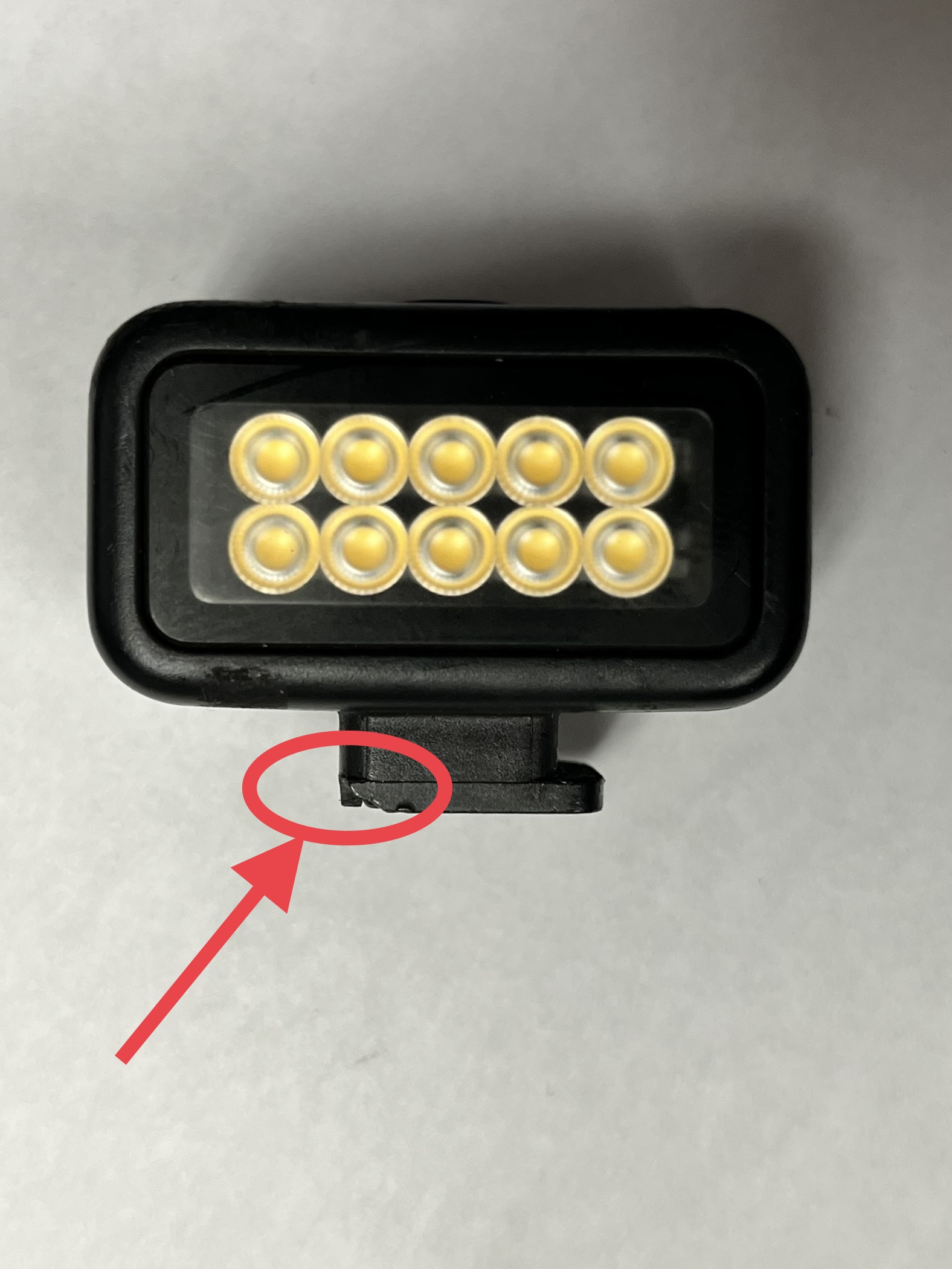
Even if you are careful there will come a day when you break one of the light bases on your GoPro Light. To date we have not broke a light in the new IF3 housing as it was redesigned to hug the light more tightly and prevent snagging and breaking. If you have the old IF2 housing at some point this will happen.

While you can’t fix the light specifically here is an alternate idea that can allow continued use of the light!

In the first picture notice the base is intact. In the second what you might find with a broken light base. In the third picture you see the base adapter that comes with the lights. If you have the IF2 or IF3 kit you should have two of these in your kit.

You will take the base and put a small dab of silicone as shown below.

Then press the light into it until it clicks into place. Wipe away any excess silicone and set it aside to dry. Sometimes it will want to pop out of the adapter vertically. You might simply be able to set it upside down and let it dry. If it doesn’t want to stay in there while its drying or won’t sit straight the try the suggestions below.

You can set a book on top of the adapter and let it dry, or use a vice or other form of clamp and gently hold it together until dried. Then you can use the GoPro head band and use the light as a headlamp and benefit from the R&D undertaken by GoPro.

If you do not have a GoPro head strap you can order one. You can also order a new GoPro Light Mod to use with your camera. Give us a call if you need these items.

Use the GoPro Light Mod as a Headlamp – A Powerful and Compact LED

  • 4 levels of brightness—up to 200 lumens—for crisp detail
    • Overdrive mode: 200 lumens, Level 3: 125 lumens, 120 lux @1m, Level 2: 60 lumens, Level 1: 20 lumens
  • Built-in rechargeable battery with up to 6 hours of runtime
  • Strobe mode for signaling and visibility
  • Runtime: 1 hour at Level 3, 2 hours at Level 2, 6 hours at Level 1
  • Color temperature without diffuser: 5700K

Last Updated 3/21/2023

Posted on

Best Practices for Taking and Using Photos in the InspectionFire App

Using pictures in the InspectionFire App is simple. Whether you use use a phone or tablet you can rest assured knowing there is an easy way to get photos into the reports.

  1. You can take photos from inside the app with the click of a button and if you have the setting turned on they will be saved to the camera roll on your phone or tablet. Click here to see how to adjust saving photos to your camera roll.
    • As long as the photos are on your device and you have allowed the InspectionFire app access to your camera roll you will be able to see all photos on your device. To see where to change those settings click here.
  2. If you take pictures on your phone but want to complete reports on a tablet you can often wirelessly send them over. For example, if you use an iPhone and an iPad to take pictures you can use the AirDrop feature and send hundreds of photos instantly from one device to another.

Some recommendations and best practices:

  • Take photos oriented the same direction. We recommend taking all photos that you can in portrait mode. (show variation in photos with all portrait, versus with screenshots, mixed portrait and landscape, and all landscape)
  • When reviewing manuals on your phone use screenshots to document and include those photos in your report.
  • Generally screenshots on phones are easier to take than on tablets.
  • When using cameras or scanning equipment there are adapters or WIFI SD cards so that you can transfer images to your phone or tablet for quick inclusion in your reports. If using one of our GoPro Camera Kits you can take screenshots to simplify capture of important shots found during inspection.
  • If you are using camera systems other than the GoPro you can either transfer the images to your phone/tablet for inclusion, email or text them to yourself, or take pictures of the screen or any images you took on those systems. Where this is a will there is a way. In the end we are happy to help discuss the best way to get good pictures off of your cameras and into our software. While we have not used all
  • If you plan on having all the photos you need on your device you can then store them in your customer file without extra steps. When special circumstances require you can then take the additional steps necessary to get the customer other videos, scans, images, etc… that may be stored directly on your device.

Last updated 3/16/2023