Posted on

What if I break one of GoPro Light Mod bases?

Even if you are careful there will come a day when you break one of the light bases on your GoPro Light. To date we have not broke a light in the new IF3 housing as it was redesigned to hug the light more tightly and prevent snagging and breaking. If you have the old IF2 housing at some point this will happen.

While you can’t fix the light specifically here is an alternate idea that can allow continued use of the light!

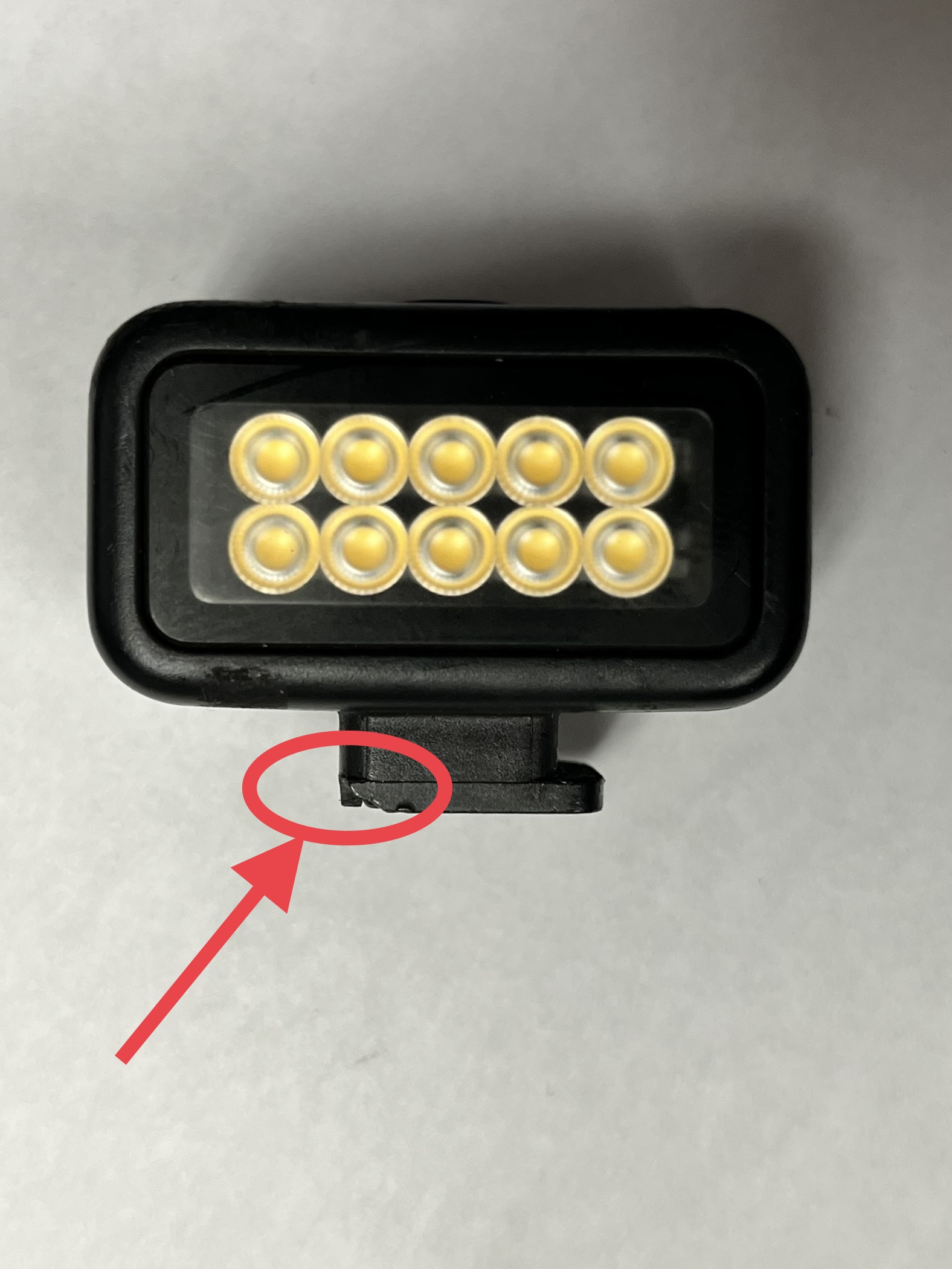
In the first picture notice the base is intact. In the second what you might find with a broken light base. In the third picture you see the base adapter that comes with the lights. If you have the IF2 or IF3 kit you should have two of these in your kit.

You will take the base and put a small dab of silicone as shown below.

Then press the light into it until it clicks into place. Wipe away any excess silicone and set it aside to dry. Sometimes it will want to pop out of the adapter vertically. You might simply be able to set it upside down and let it dry. If it doesn’t want to stay in there while its drying or won’t sit straight the try the suggestions below.

You can set a book on top of the adapter and let it dry, or use a vice or other form of clamp and gently hold it together until dried. Then you can use the GoPro head band and use the light as a headlamp and benefit from the R&D undertaken by GoPro.

If you do not have a GoPro head strap you can order one. You can also order a new GoPro Light Mod to use with your camera. Give us a call if you need these items.

Use the GoPro Light Mod as a Headlamp – A Powerful and Compact LED

  • 4 levels of brightness—up to 200 lumens—for crisp detail
    • Overdrive mode: 200 lumens, Level 3: 125 lumens, 120 lux @1m, Level 2: 60 lumens, Level 1: 20 lumens
  • Built-in rechargeable battery with up to 6 hours of runtime
  • Strobe mode for signaling and visibility
  • Runtime: 1 hour at Level 3, 2 hours at Level 2, 6 hours at Level 1
  • Color temperature without diffuser: 5700K

Last Updated 3/21/2023

Posted on

Best Practices for Taking and Using Photos in the InspectionFire App

Using pictures in the InspectionFire App is simple. Whether you use use a phone or tablet you can rest assured knowing there is an easy way to get photos into the reports.

  1. You can take photos from inside the app with the click of a button and if you have the setting turned on they will be saved to the camera roll on your phone or tablet. Click here to see how to adjust saving photos to your camera roll.
    • As long as the photos are on your device and you have allowed the InspectionFire app access to your camera roll you will be able to see all photos on your device. To see where to change those settings click here.
  2. If you take pictures on your phone but want to complete reports on a tablet you can often wirelessly send them over. For example, if you use an iPhone and an iPad to take pictures you can use the AirDrop feature and send hundreds of photos instantly from one device to another.

Some recommendations and best practices:

  • Take photos oriented the same direction. We recommend taking all photos that you can in portrait mode. (show variation in photos with all portrait, versus with screenshots, mixed portrait and landscape, and all landscape)
  • When reviewing manuals on your phone use screenshots to document and include those photos in your report.
  • Generally screenshots on phones are easier to take than on tablets.
  • When using cameras or scanning equipment there are adapters or WIFI SD cards so that you can transfer images to your phone or tablet for quick inclusion in your reports. If using one of our GoPro Camera Kits you can take screenshots to simplify capture of important shots found during inspection.
  • If you are using camera systems other than the GoPro you can either transfer the images to your phone/tablet for inclusion, email or text them to yourself, or take pictures of the screen or any images you took on those systems. Where this is a will there is a way. In the end we are happy to help discuss the best way to get good pictures off of your cameras and into our software. While we have not used all
  • If you plan on having all the photos you need on your device you can then store them in your customer file without extra steps. When special circumstances require you can then take the additional steps necessary to get the customer other videos, scans, images, etc… that may be stored directly on your device.

Last updated 3/16/2023